How to Use the Radiology Reporting Simulator

Practice reporting on real, anonymous MRI or CT cases directly in your browser.

Buy Premium Membership

This guide walks you through every feature: from launching your first case to interpreting mentor feedback and tracking CME progress.

Getting Started

Choose Your Access Type

Before using the Radiology Reporting Simulator, you'll need to create an account by choosing one of the following options:

Enrol in a Reporting Course (Full Access) - Get a Premium Membership

Enrolling in one of our structured reporting courses unlocks full access to:

  • All simulator cases
  • Expert feedback
  • CME-eligible content

This is the ideal path if you want a complete training experience and CME accreditation.

Get a Free Membership (Includes 5 DICOM Cases)

Create a free account to explore the platform using 5 fully interactive DICOM cases.

With Free Membership, you can:

  • Practise reporting using the full PACS viewer
  • Experience the structured reporting workflow

This is recommended if you want to try the simulator before committing to a reporting course.
Launching a Reporting Course

Each course consists of cases that are grouped into modules (sets of 5 cases). The number of modules varies in each course.

Click Open course to open the module dashboard. Once inside, open the case you want to start working on. You'll see the dual-pane interface:

  • Left: Structured reporting template
  • Right: PACS viewer with full DICOM interaction tools

Completing a Structured Report

Our reporting system adjusts dynamically based on your findings.

How to Use It

  • Select findings using dropdowns and checkboxes.
  • Complete sections in sequence.
  • Watch additional fields appear as needed

Structured reporting keeps your workflow focused and clinically aligned.

Submitting Your Report

Once you've completed all sections, double-check the completion indicators, correct any omissions, and click Submit Report.

Reviewing Expert Feedback

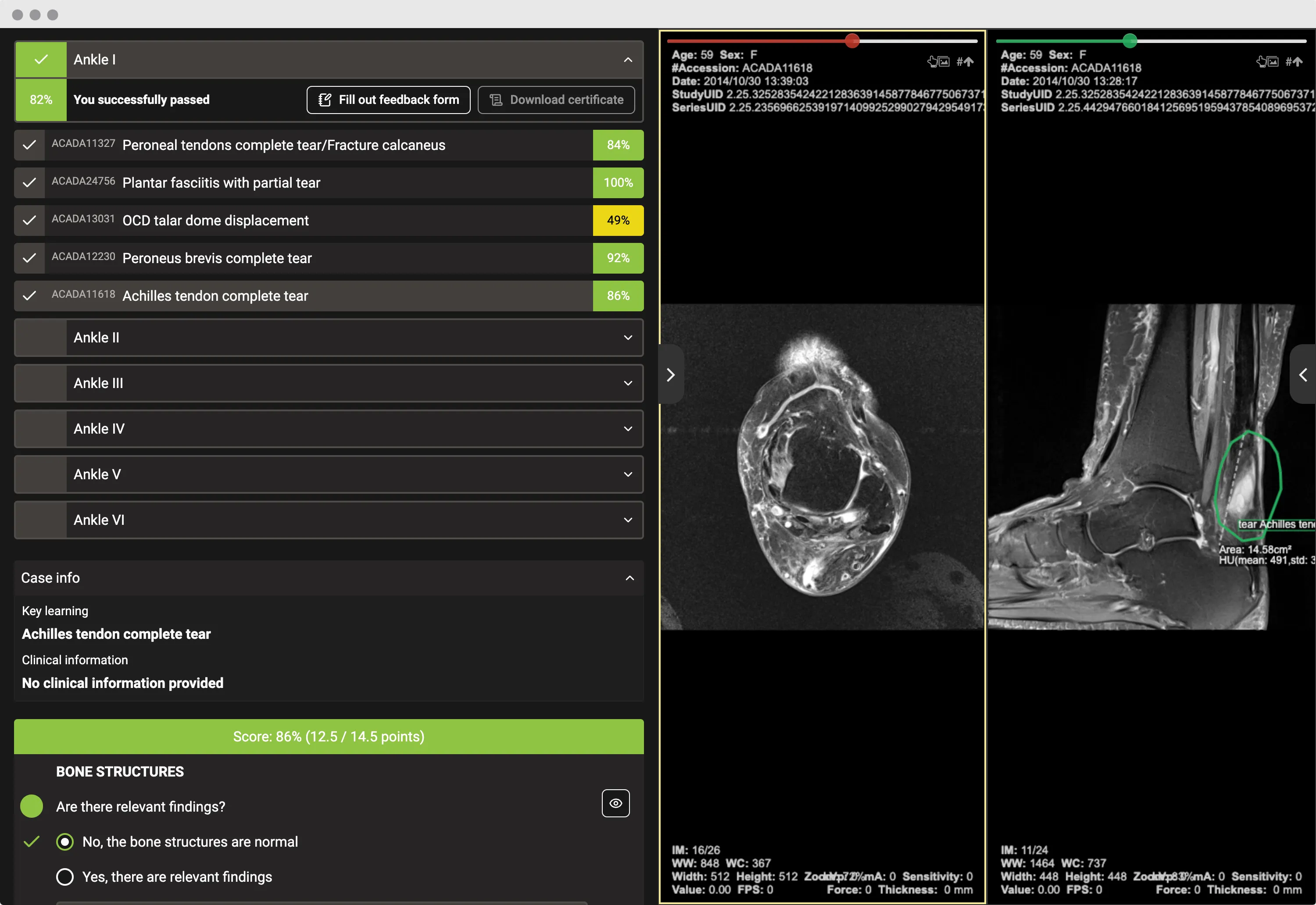
Every case includes detailed mentor review, which becomes available after submission.

Your feedback package includes:

  • A corrected version of your report with a corresponding grade.
  • Annotated images highlighting key findings
  • Written explanations for findings

Use the side-by-side view to compare your interpretation with the expert's approach.

Radiology Reporting Simulator expert feedback interface

Tracking Your Progress

Return to your dashboard at any time to see your analytics.

Your performance metrics include:

  • Case completion history - see which cases you've started, completed, or revisited
  • Course progress bar - reach at least 66% completion to qualify for downloading your CME certificate

If you did not reach the minimum required score to pass the course, you can reset the module and try again. A Try Again button will appear on your dashboard, allowing you to restart the case and improve your performance.

Managing CME Credits

CME credits are available after you complete each module (5 cases) in the course and achieve a minimum score of 66%. Once you meet these requirements, the certificate download option will automatically activate.

To earn CME credits for a reporting module, you must complete all 5 cases in the module and achieve a minimum score of 66%. Once eligible, the certificate download option will automatically activate.

Follow these steps to obtain your CME certificate:

  1. Complete the module feedback form
  2. After submitting the form, the Download CME Certificate button will appear on your dashboard

You can then download and save your certificate for your records or professional accreditation.

Support and FAQs

If you have questions about features, troubleshooting, or account settings, please visit our dedicated FAQ page:

Ready to Build Your Reporting Skills?

Train on real anonymised cases, receive expert feedback, and earn CME credits in one place.